Introducing the BOB-G2553-28 aka the Dos Ocho
2018.07.04 13:32
Working with the LaunchPad, I found 16 I/O pins usually was sufficient, but noticed the following issues:- Parallel LCD outputs require at least 7 digital pins, so hooking up an LCD and a Booster Pack was generally not possible.
- analogWrite() pins are few and far between. Use a few peripherals and you barely have any PWM outputs left.
- Arduino boards would make me feel pin envy.
- LaunchPad boards got expensive...
- I like to be able to use LEDs, sometimes LCDS, for debugging. I found it a pain to remove the debug hardware from the breadboard and the debug code from my files.
In the maker world, the 28 pin MSP430 is the more capable, but far less popular relative of the 20 pin MSP430. Certainly, if you want more pins, you can upgrade to a FraunchPad or even the 40 pin value line DIP chips. To keep the scope of this article focused, I will only relate the utility of 28 pin devices with respect to the MSP430 LaunchPad and 20 pin MSP430 DIPs. Specifically, these 8 extra pins are know as Port 3, or P3.
What is the utility of P3?
Besides allowing for slightly larger projects, there are least three specific applications of P3:
- PWM Flexibility: The pins replicate the PWM functionality from other pins, so they ease the cost of multiplexing.
- Character LCDs: Bit banged LCD modules require 7 digital I/O pins. Adding an LCD to any project designed for 20 pins is simple.
- Easier debugging: P3 is nonexistent in 20 pin applications; with a little macro magic, any debugging I/O over P3 is magically optimized out when you compile for 20 pins.
- What kind of development board to use?
- What does code for P3 look like?
28 pin Development Board
The BOB-G2553-28 breakout board (aka Dos Ocho), provides an MSP430 LaunchPad compatible header layout while adding P3 as an auxiliary 2x5 header (8 P3.0-P3.7, VCC and GND). The 2x5 header is intended for IDC connectors, which I chose the following reasons:
- Crimp IDC connectors are readily available online.
- They mate onto standard 0.1" spaced male headers or right angle headers.
- Ribbon cable is readily available online or from salvaging old 40 pin IDE cables. You can make 4 10 pin cables from it!
- The connectors come in keyed styles.
Soldering the Passives
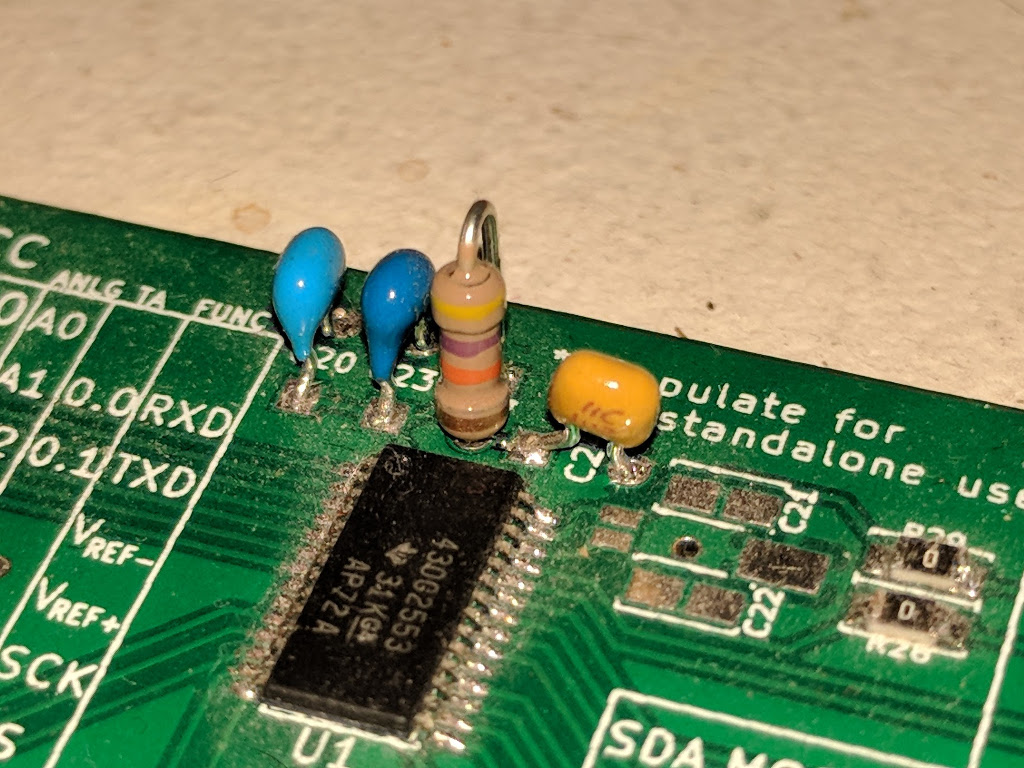
The following passives must be soldered to the board;
- C20: 0.1uF
- C23: 10uF
- R27: 47k
- C24: 1nF
- Light Blue: 0.1uF, goes to C20
- Dark Blue: 10uF, goes to C23
- Resistor: 47k, goes to R27
- Mustard: 1nF, goes to C24
Soldering the Connectors
You can use standard 10x1 0.1" header to populate J1 and J2. Using female header allows you to use standard male jumper wires to connect to breadboards. For the 2x5 connectors:
- Choose male if you are going to hookup IDC 2x5 crimp connectors
- Choose female if you are going to attach male jumper wire
Wiring the Dos Ocho for Programming
The Dos Ocho uses the LaunchPad programming/debugging system. A LaunchPad is typically divided into 2 sections: the programmer/debugger and the target processor. We depopulate the row of headers to isolate the programming section from the target processor. Instead, the Dos Ocho becomes the target processor. We make the following connections:
- VCC: (optional) Use the 3.6V generated by the LaunchPad to power your circuit
- GND: Connect to make a common ground between the LaunchPad and your circuit
- TEST: Required for TI's Spi-Bi-Wire programming
- RST: Required for TI's Spi-Bi-Wire programming
- VCC: White
- GND: Purple
- TEST: Blue
- RST: Green
At this point, the Dos Ocho should appear like any standard MSP430G2553 processor. You can use your favorite environment (CCS, Energia, straight up Linux command line) to program your board.


